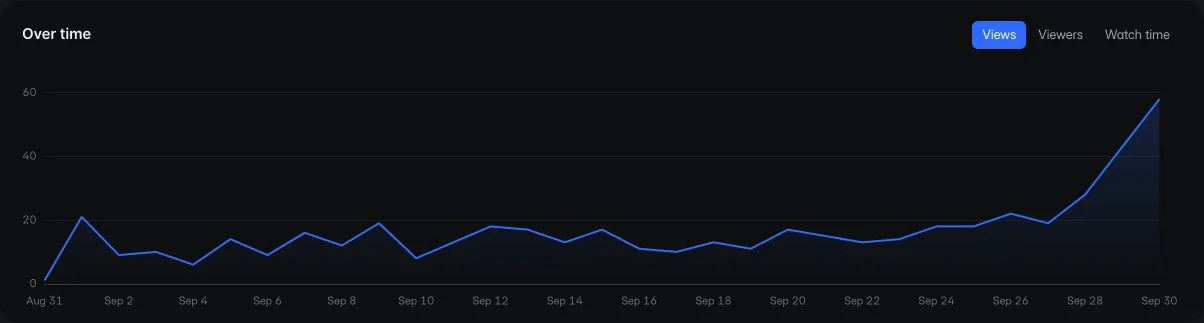
Views over time
Views, unique viewers and watch time for any range, across review links and the app.
Send your client a review link. They leave a note on the frame they mean, and every revision stays with the feedback that led to it.
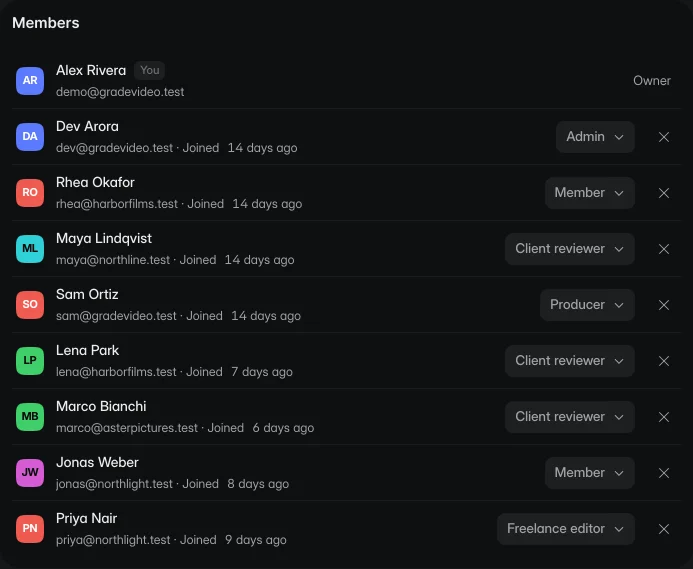
Reviewers never need a paid seat
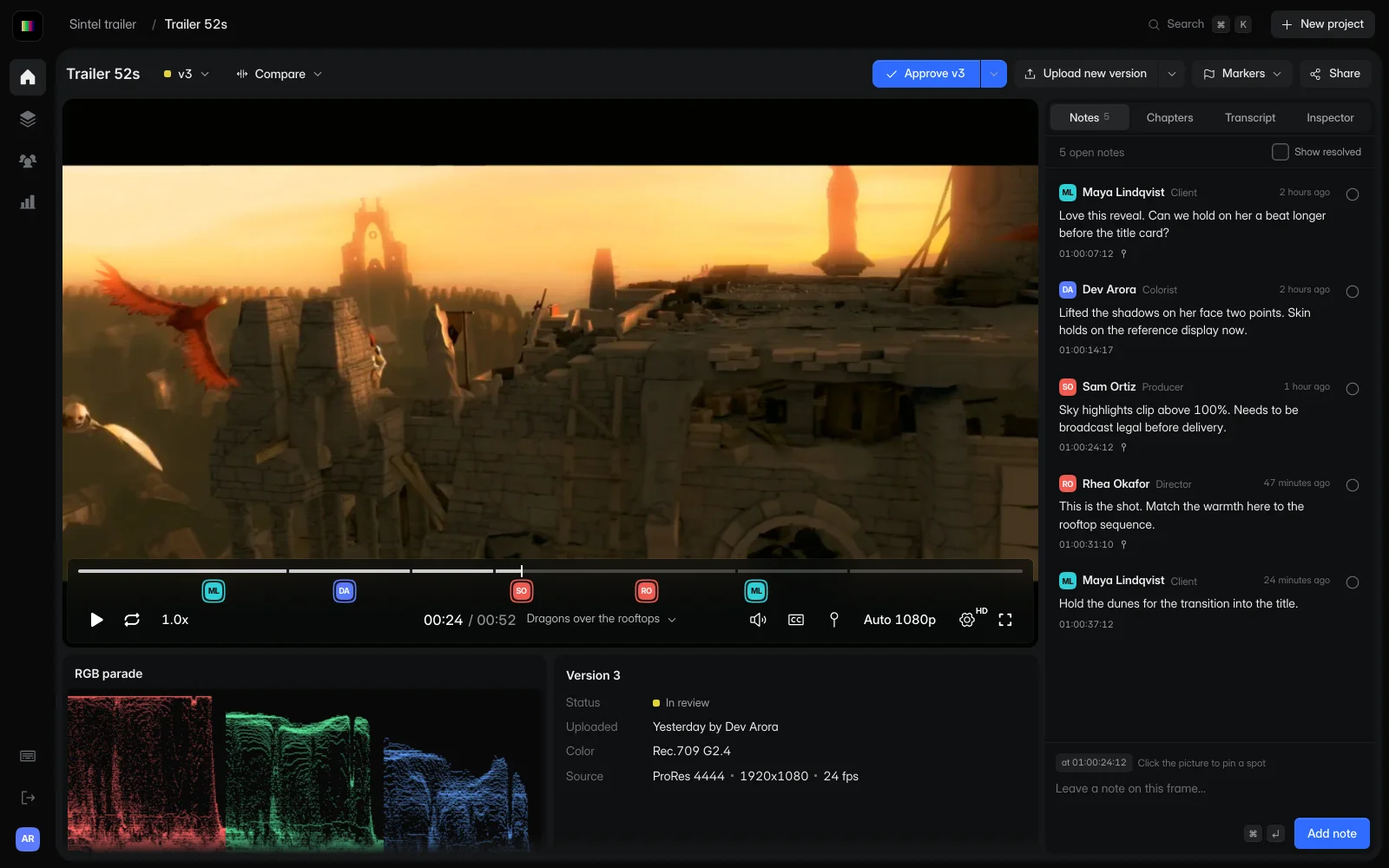
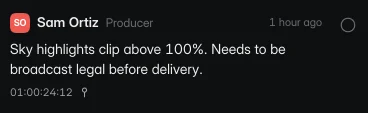
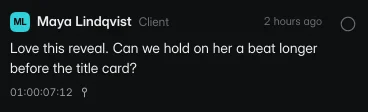
GradeVideo keeps each version next to the feedback it got, so the next edit starts with clear instructions instead of a message thread. AI tools add the transcript, chapters and content checks.
A reviewer pauses, types and pins the part of the picture they mean. Every note carries its timecode.
Try the reviewWipe between two uploads at the same moment to check that the change was made.
Drag the wipeOne link per review, with its own password, expiry, comment and download settings. No account needed.
See sharingSee who watched, how far they got and where they stopped, across every file and review link.
See analyticsKeep the cut and the conversation together, so the next edit starts with clear instructions.
Upload your cut and keep it in a project with the rest of the job.
ProRes · DNxHR · H.264 · H.265 · up to 8K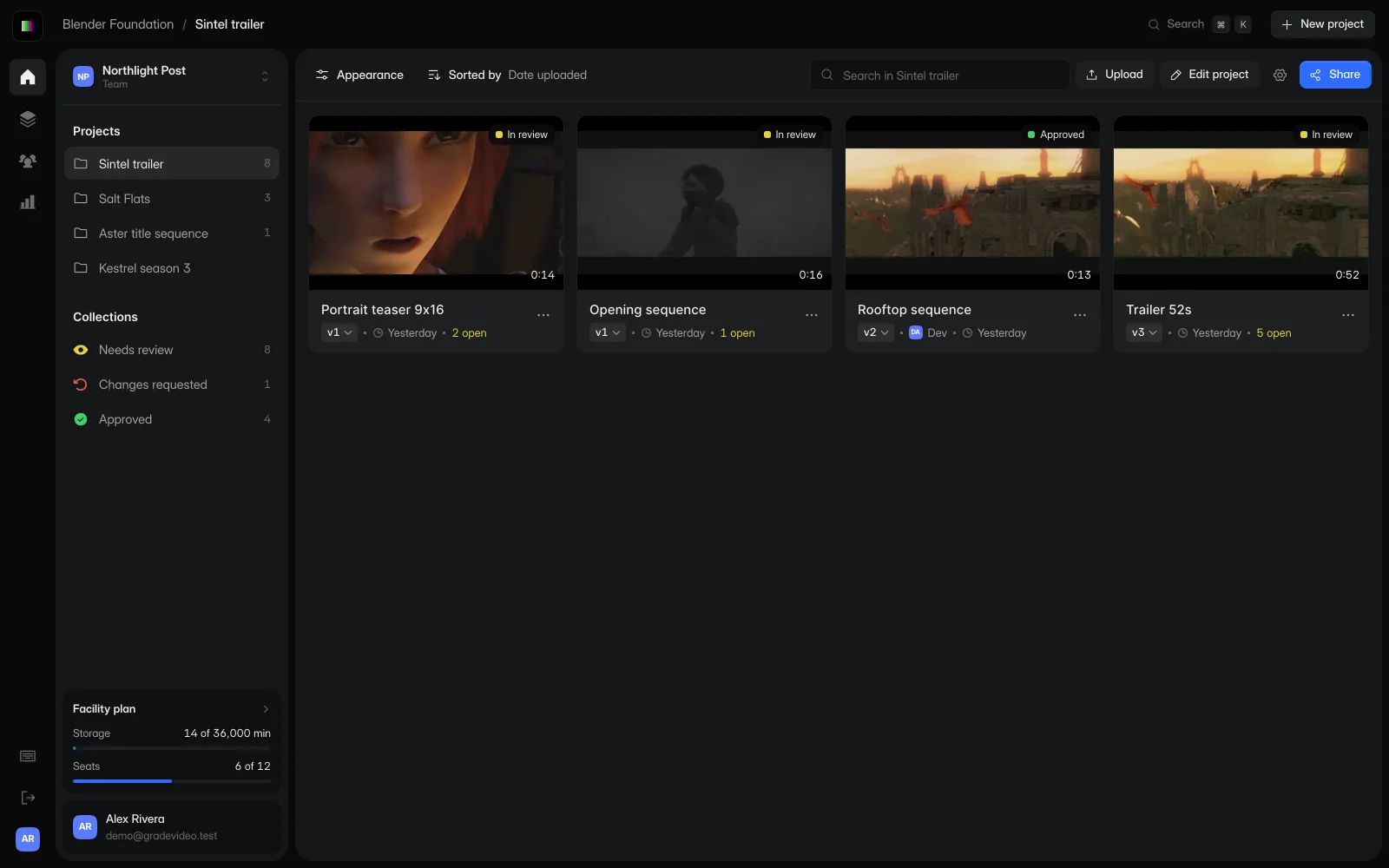
Send a review link. Read the client's comments beside the video, with a timecode for each note.
Timecode · frame number · pin on the pictureAdd the next cut to the same project. Wipe between the versions to check what changed.
Version stack · wipe compare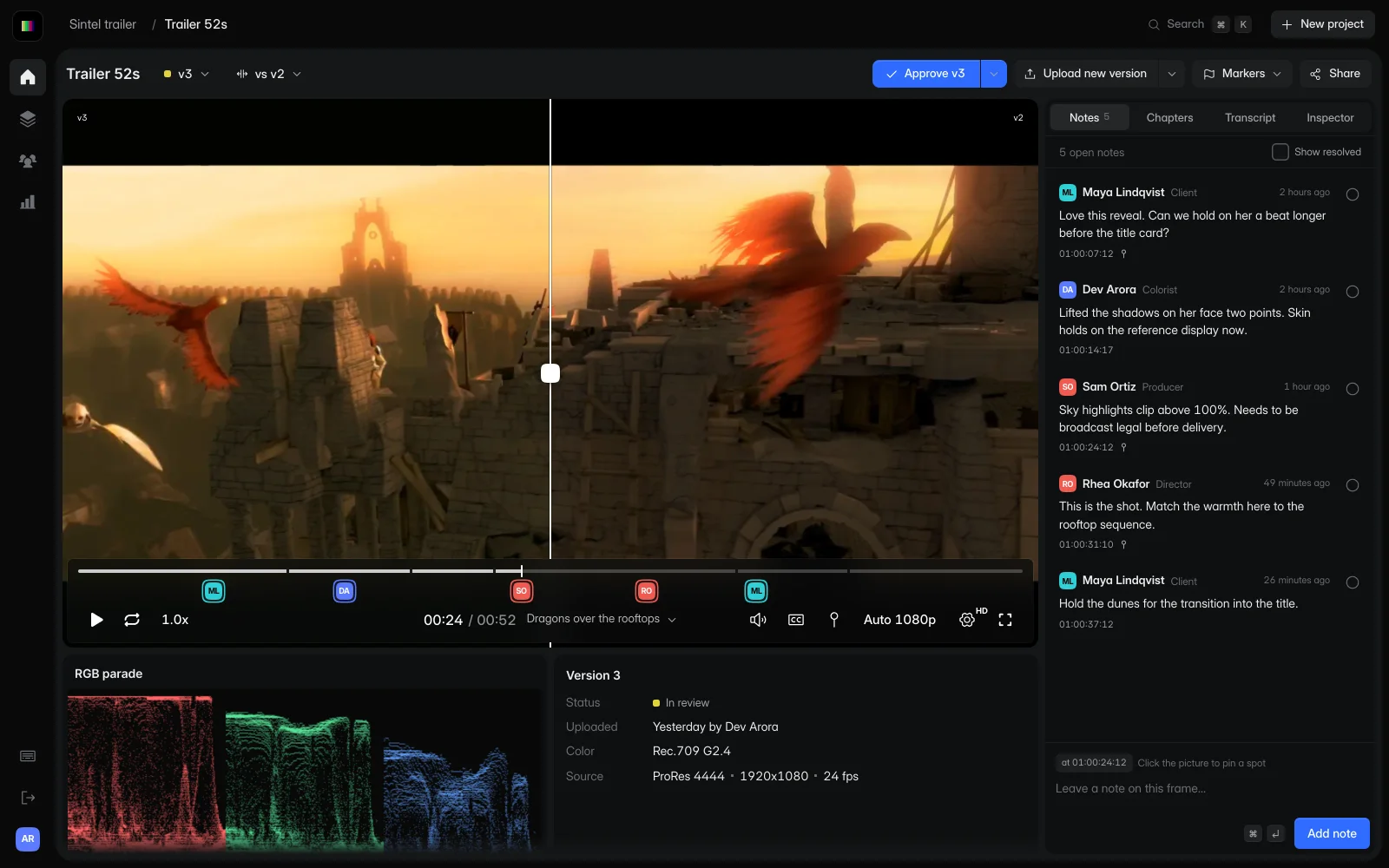
Record the decision against the version under review, so the team knows which cut was approved.
Per-version approval · decision history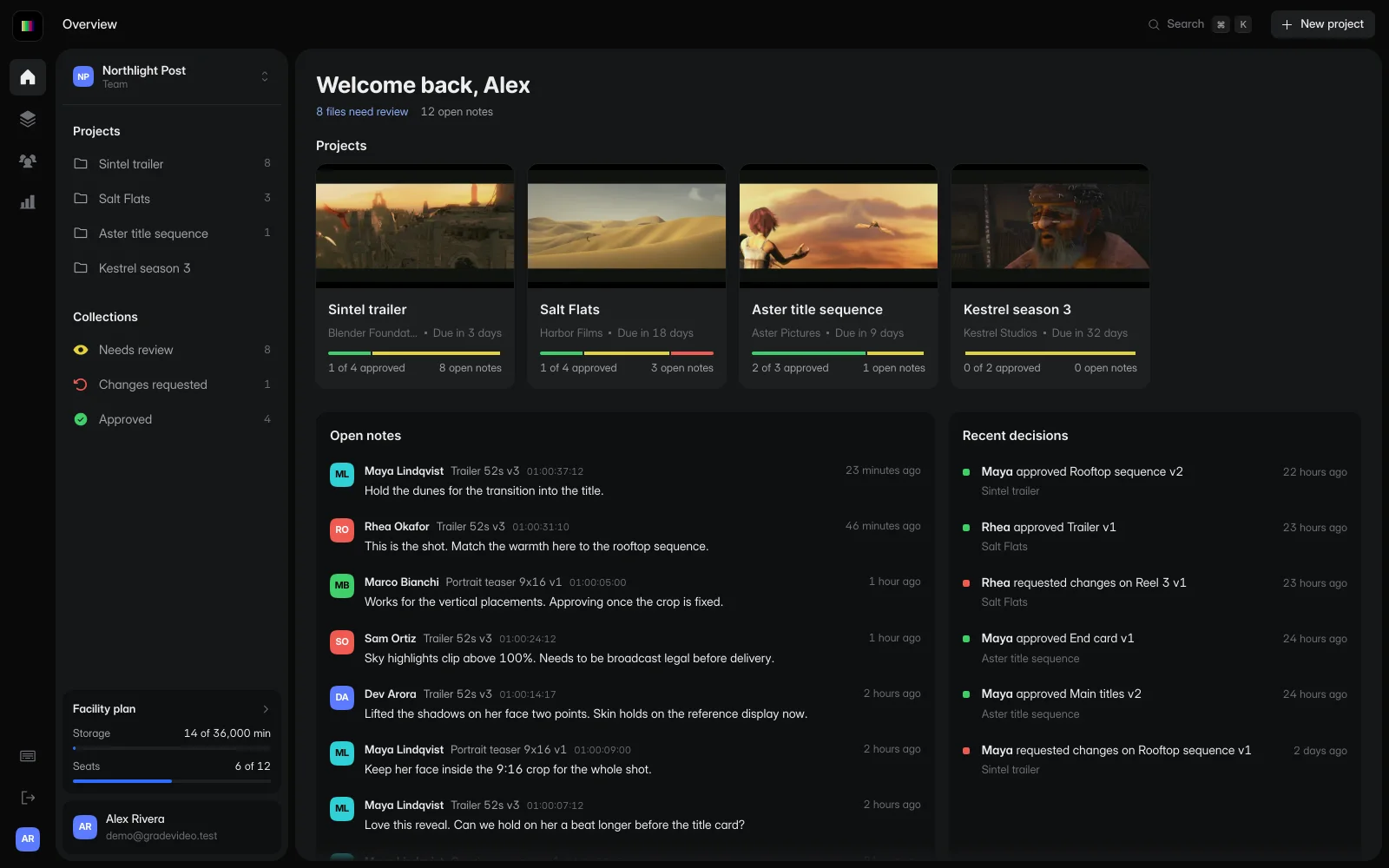
Watch the shot and read the feedback beside it. Every note has a timecode, so you can find the change without searching a message thread.
Choose a note to pause at its timecode.
Sintel © Blender Foundation, under CC BY 3.0. Demo revisions include excerpts, a portrait crop and a color adjustment.
Use the handle to drag the wipe across the picture and compare the two versions.
Watch the revised cut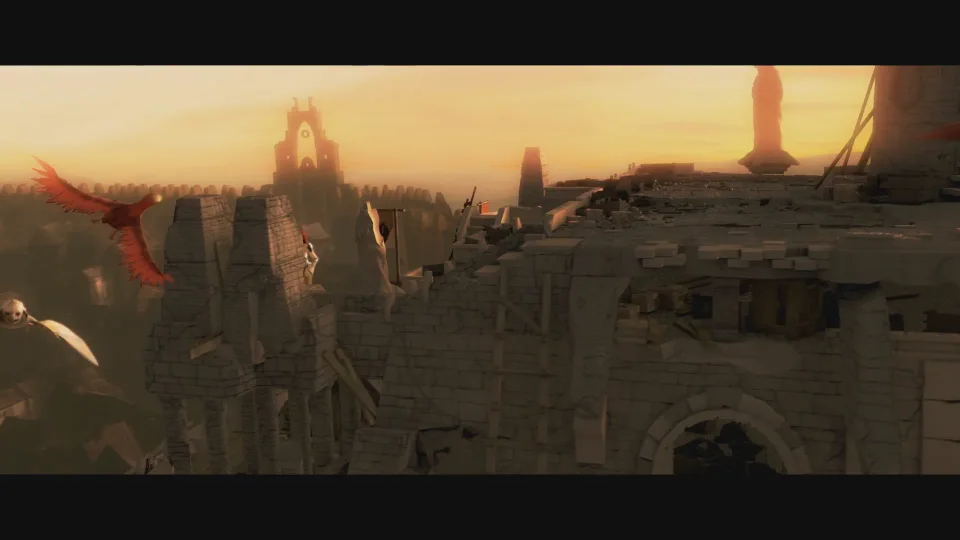
 v3v2
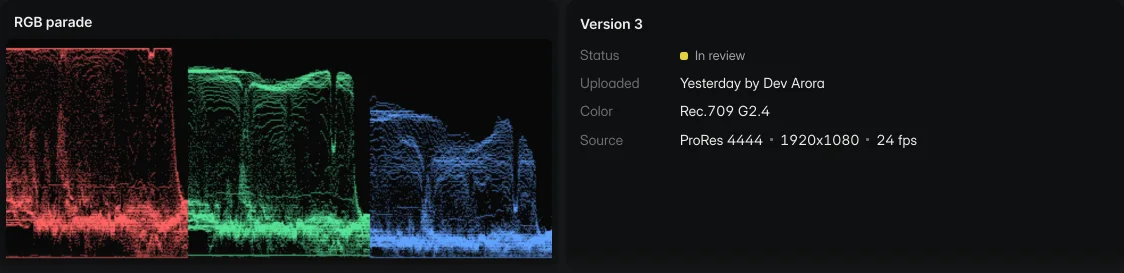
v3v2Get it right every time. Review colors, metadata, and vital information. See the source resolution, frame rate and project color space before you send the next review.

Take the review notes into your edit as timeline markers. Each marker tells you where to look and what the reviewer asked to change.
TITLE: SINTEL_TRAILER_V3
FCM: NON-DROP FRAME

001  AX       V     C        01:00:07:12 01:00:07:13 01:00:07:12 01:00:07:13
* LOC: 01:00:07:12 CYAN    MAYA (CLIENT) HOLD ON HER A BEAT LONGER BEFORE THE TITLE CARD
002  AX       V     C        01:00:24:12 01:00:24:13 01:00:24:12 01:00:24:13
* LOC: 01:00:24:12 RED     SAM (PRODUCER) SKY HIGHLIGHTS CLIP ABOVE 100%
003  AX       V     C        01:00:31:10 01:00:31:11 01:00:31:10 01:00:31:11
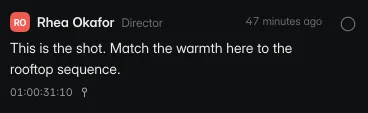
* LOC: 01:00:31:10 RED     RHEA (DIRECTOR) MATCH THE WARMTH TO THE ROOFTOP SEQUENCE
TITLE: SINTEL_TRAILER_V3
FCM: NON-DROP FRAME
001 001 V C 01:00:07:12 01:00:07:13 01:00:07:12 01:00:07:13
Hold on her a beat longer before the title card. |C:ResolveColorCyan |M:Maya (Client) |D:1
002 001 V C 01:00:24:12 01:00:24:13 01:00:24:12 01:00:24:13
Sky highlights clip above 100%. |C:ResolveColorRed |M:Sam (Producer) |D:1timecode,frame,version,reviewer,role,status,note
01:00:07:12,180,v3,Maya Lindqvist,Client,open,"Love this reveal. Can we hold on her a beat longer before the title card?"
01:00:14:17,353,v3,Dev Arora,Colorist,open,"Lifted the shadows on her face two points."
01:00:24:12,588,v3,Sam Ortiz,Producer,open,"Sky highlights clip above 100%. Needs to be broadcast legal before delivery."
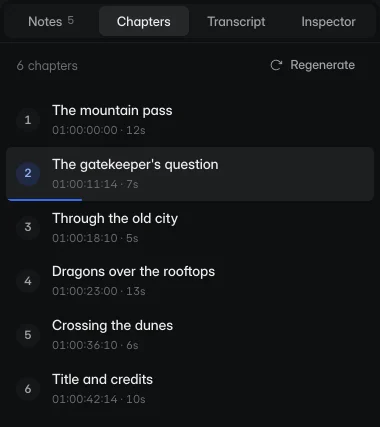
01:00:31:10,754,v3,Rhea Okafor,Director,open,"This is the shot. Match the warmth here to the rooftop sequence."Run AI tools on any upload, or on every upload in a project. The transcript, chapters and checks land on the review page, next to the cut.
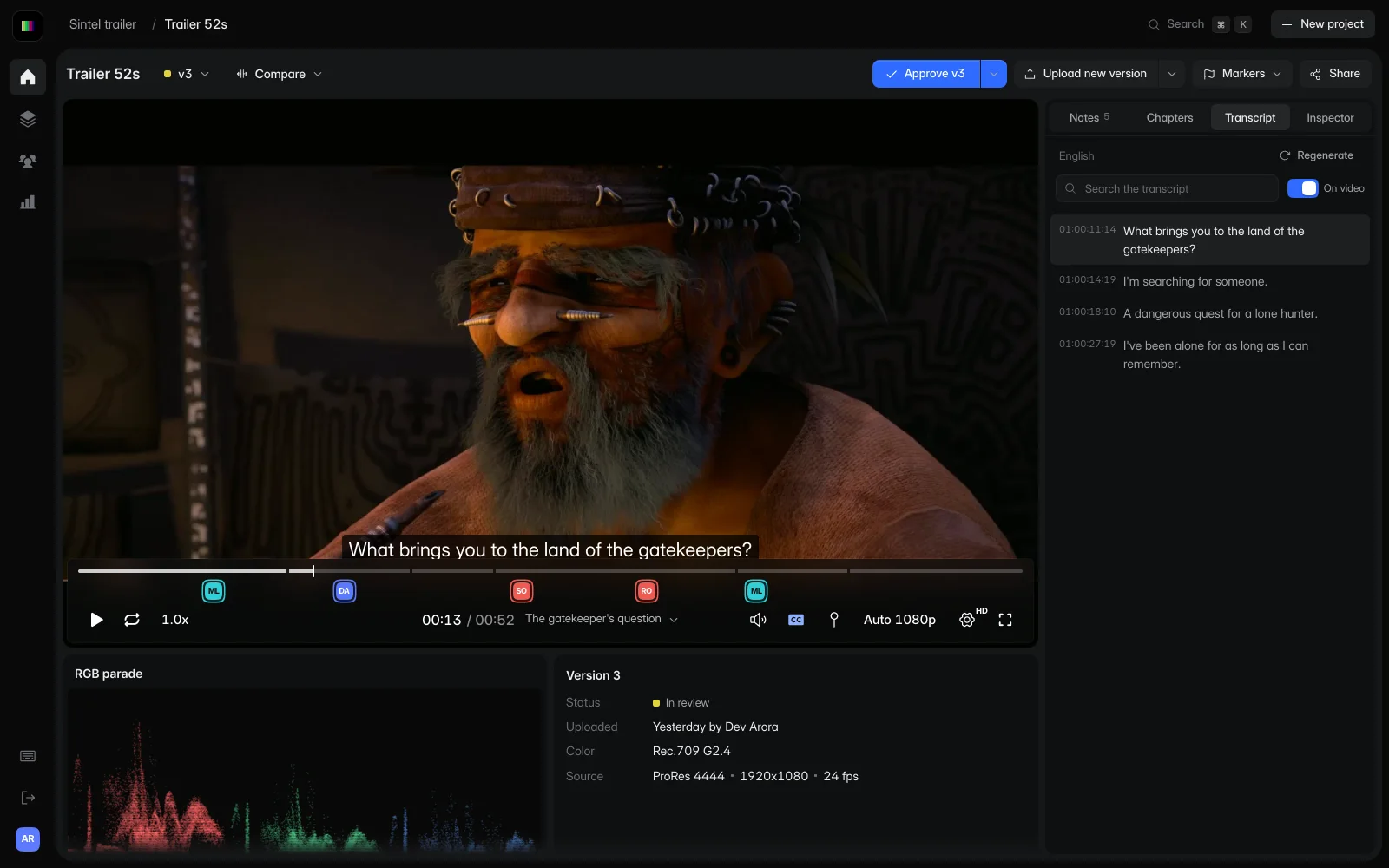
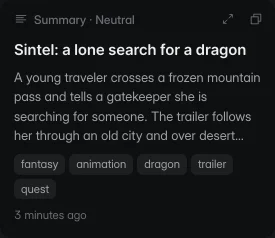
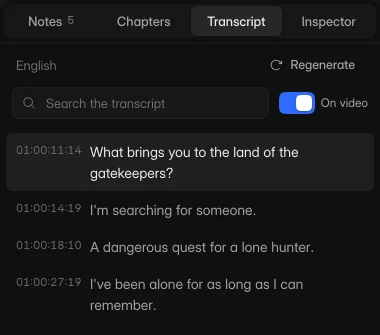
High-accuracy captions and a searchable transcript. Choose a line to jump to it, or show the captions on the video.
Titled, timestamped sections in their own tab and along the timeline, so reviewers can find a scene by name.
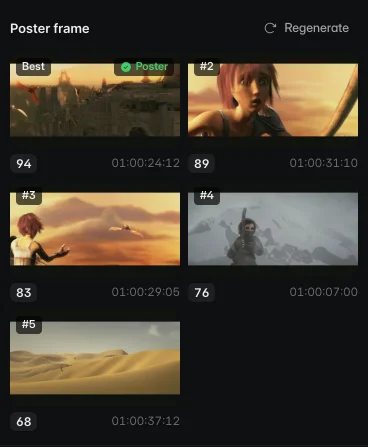
Five frames scored for focus, composition and contrast. Pick one as the poster for the file card.
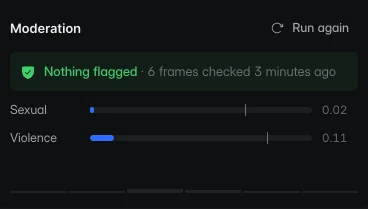
Sampled frames are scored for sexual and violent content, so you know before a review link goes out.
A title, description and tags written from what's said and shown, in the tone you choose.
Translate the spoken audio into another language. Each dub is a track reviewers can switch to in the player.
Choose the tools a project runs on each new version. Whoever uploads can still change them for one file.
AI tools are billed by use. Each one shows its cost before it runs, and failed or cancelled jobs are free.
How AI usage is priced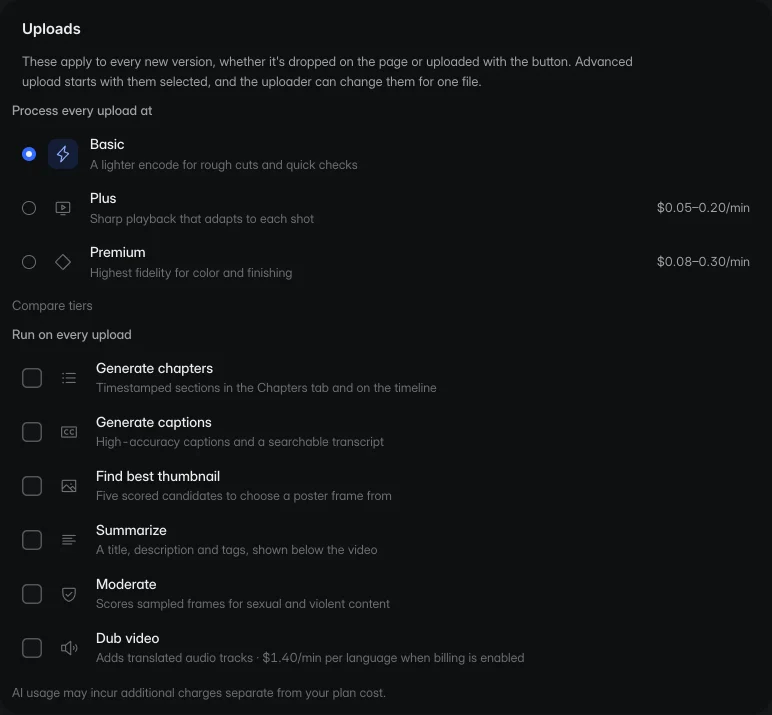
Choose the files, send one link and keep the feedback with the work. Control comments, downloads, passwords and link expiry for each review.

Your side. Set access for each review link.
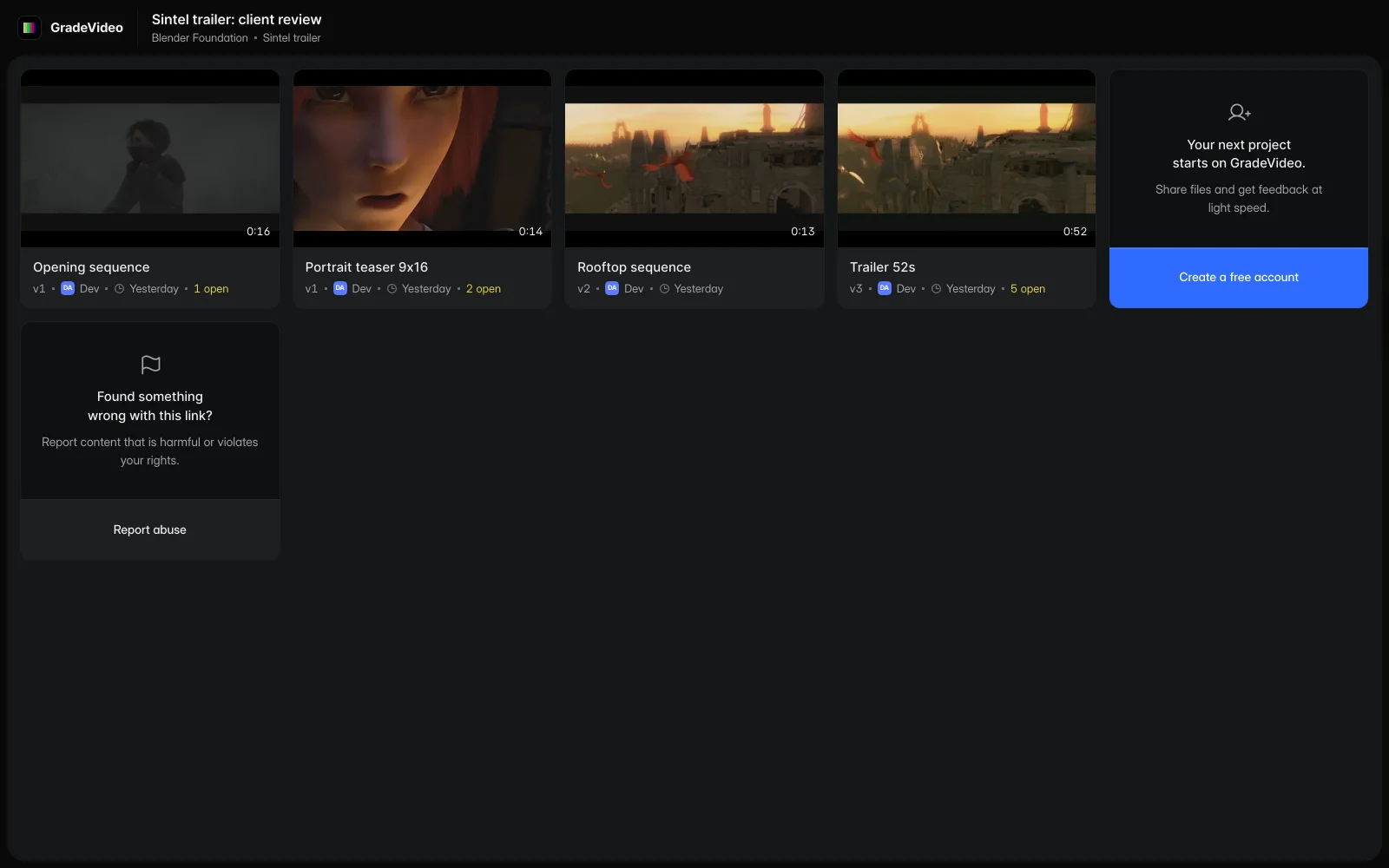
Their side. Your shared files are instantly available for them to view and provide feedback.
See a demoAnalytics records every view of every cut: who watched, where, on what device and for how long. Included with Studio and Facility.

Views, unique viewers and watch time for any range, across review links and the app.
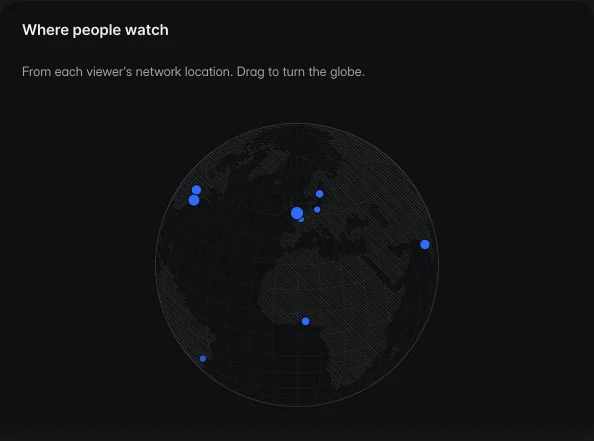
Every view placed on the globe from the viewer's network location.
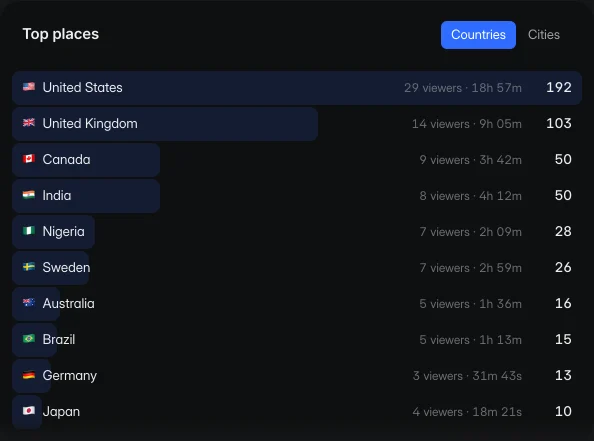
Countries and cities, ranked by views and watch time.
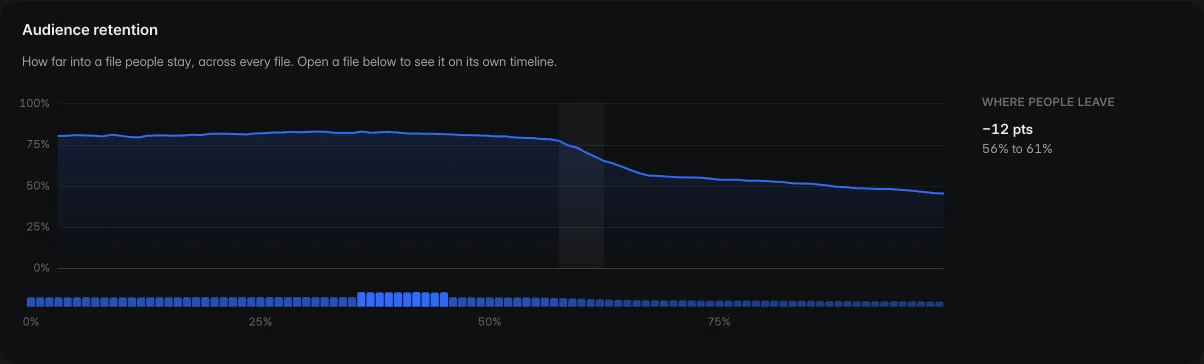
How far into a cut people stay, and the moment most of them leave.
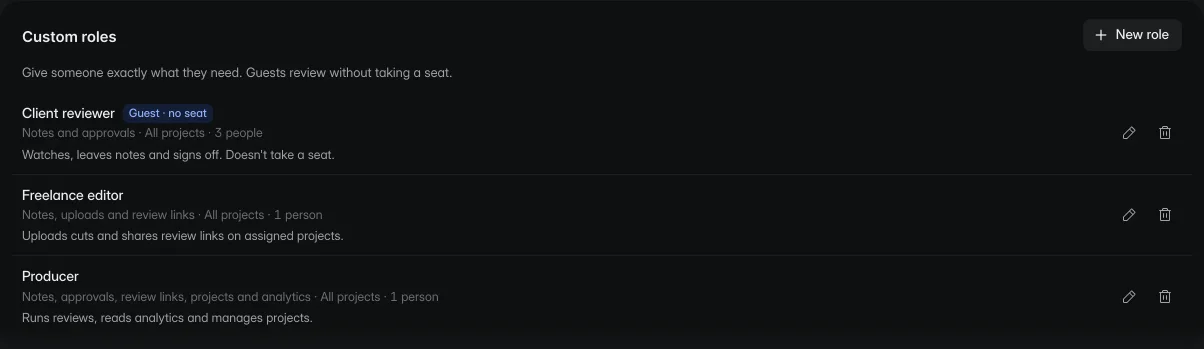
Give editors, producers and clients exactly what they need. Custom roles limit people to certain projects and permissions, and guest reviewers never take a seat.
SAML sign-in through your identity provider, with a record of who saw what.
Protected playback and forensic watermarks, as add-ons for unreleased work.
Your logo and colors on review pages, so the link looks like your studio.
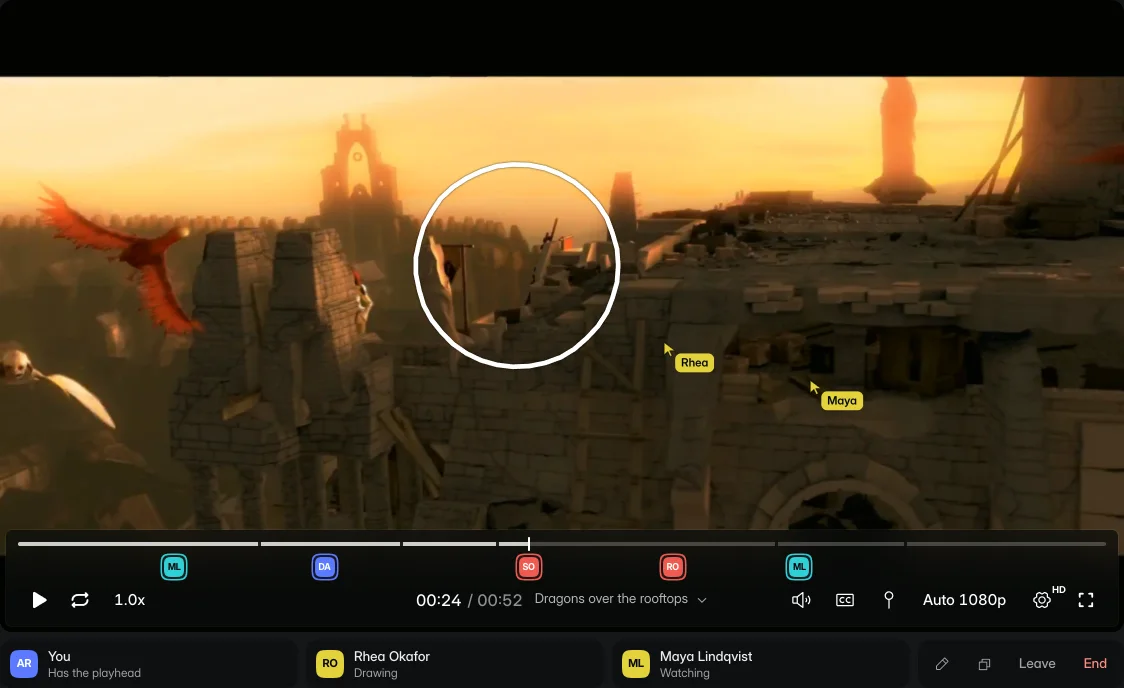
Watch a cut together on the same frame. Draw, point and talk it through, with guests joining from a link.
Wipe between any two versions on the same frame to see what changed.
Notes pinned to a frame and a spot on the picture.
Thread a reply, mention a teammate or mark a note across a range.
A live RGB parade beside the picture.
Notes become markers in Resolve, Premiere and Avid.
Transcripts, chapters, summaries, thumbnails, moderation and dubbing, billed by use.
Who watched each cut, where, and for how long, for the team and for each file.
Who approved each version, and when.
Rec.709 on every plan. Wide gamut and HDR on Studio.
Up to 1080p on Freelance, up to 4K on Studio.
A link for clients to drop files into a project.
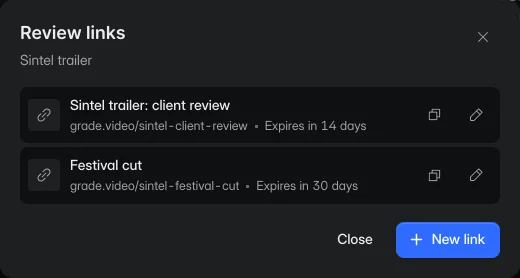
One link per review. Set comments, downloads and expiry for each.
Limit people to certain projects and permissions.
Keep creating as usual, use GradeVideo to collaborate and get feedback.
Export a review copy from your editor.
Upload it to a GradeVideo project.
Send the review link to your client and collect notes on the cut.
Whether you're working with a client, a brand or a class: give the people reviewing your video a place to leave useful notes.
Give editors, producers and clients one place to review each version, from the first assembly to the delivery file.
See the workflowShare a draft with your editor, manager or brand contact. Keep their feedback on the video instead of spread across messages.
See the workflowReview film assignments, class projects and campus videos with comments that show students which moment needs work.
See the workflowUpload the cut and send a link. Read the client's notes beside the video, then keep the revision in the same project.
See the workflowClients, agencies, directors and producers who only watch and comment are always free, on every plan.
For one editor with a few client projects.
Start freeOr $16 per seat / month billed yearlyBilled $192 per seat each year
For teams with several cuts in review.
Get startedFor teams reviewing unreleased work with stricter access requirements.
Contact salesPrices in USD, before tax. Reviewers are free on every plan. Prices do not include additional services.
Open CalculatorSomething else? Email us and a person will reply.
No. Anyone with the link, and the password if you set one, can watch and comment. They enter a name so their notes are attributed. Only people who upload need a seat.
Screens can differ. The source file, browser, display settings and room lighting affect the picture. Use a calibrated reference display for final color decisions.
ProRes (including 4444 and RAW proxies), DNxHR, H.264, H.265 and image sequences, up to 8K. We keep the original and create streaming renditions for playback.
Yes, on Studio and Facility. PQ and HLG masters play as HDR on displays and browsers that support it, and are tone mapped to SDR everywhere else.
GradeVideo manages media storage and video delivery. Your plan includes a storage allowance, and Facility capacity is agreed with sales. You do not need to run a separate storage bucket.
Yes. Export a review copy from your editor, upload it to a GradeVideo project and send the review link. Make the changes in your usual editing tools.
Start free with one editor and three projects. Reviewers never pay.