Keep the agency round in one thread
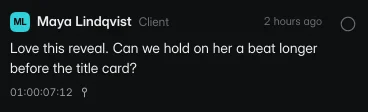
Give the producer, creative team and client the same review link. Their comments sit beside the cut, with the moment they refer to attached.
Give editors, producers and clients one place to review each version, from the first assembly to the delivery file.
Compare plans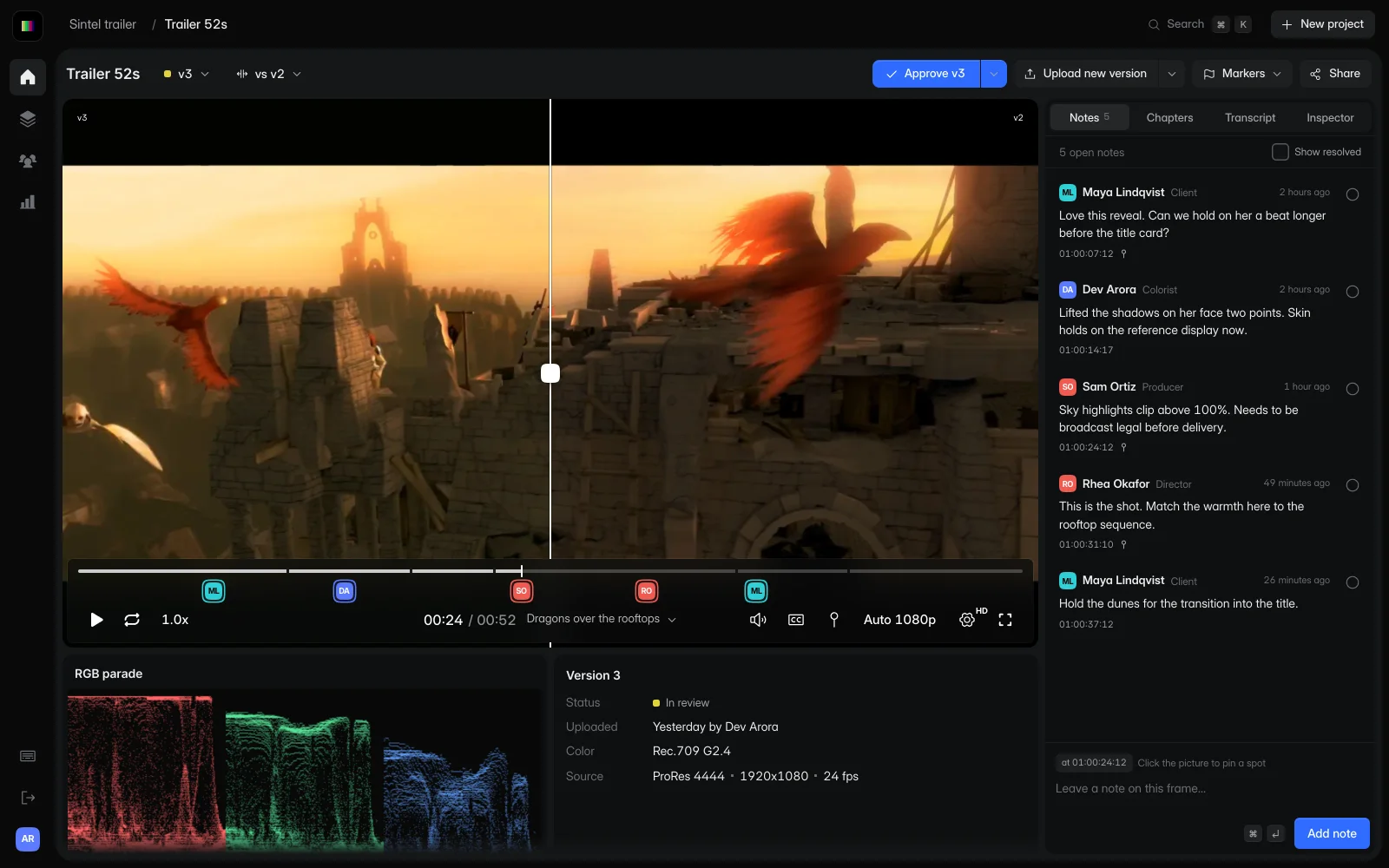
Play the sample clip, then choose a note. The player jumps to the moment under review, so an editor can find the change without searching a message thread.
Choose a note to pause at its timecode.
Sintel © Blender Foundation, under CC BY 3.0. Demo revisions include excerpts, a portrait crop and a color adjustment.
A producer shares the latest cut with the agency. The editor gets comments on specific frames, uploads a revision and keeps both versions in the same project.
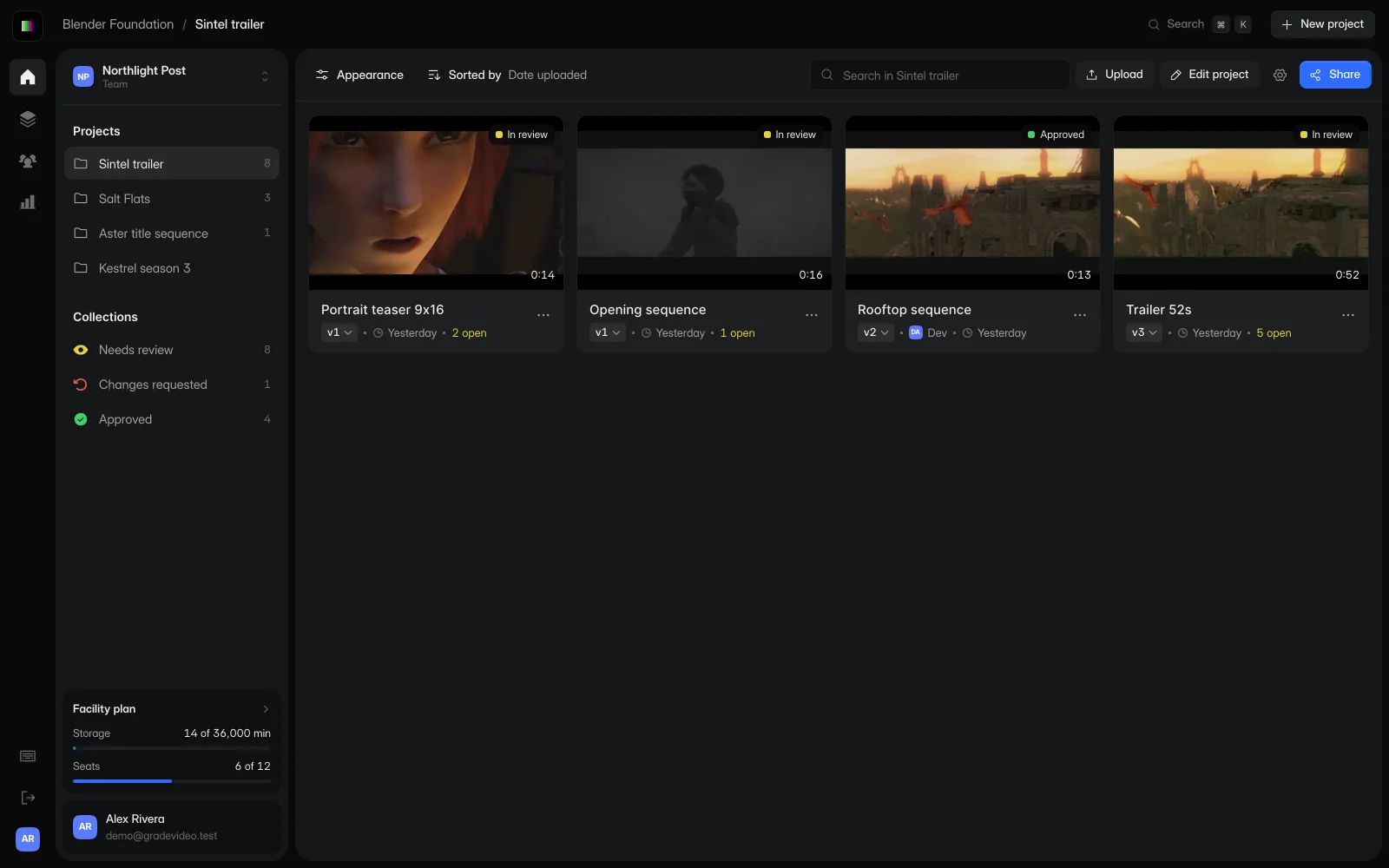
Keep the cut, its versions and the review thread together so the team can find the work it needs.
Give clients access to the cut. Set link access and download permissions for each review.
Compare versions and read the notes beside the video before you send the next cut.
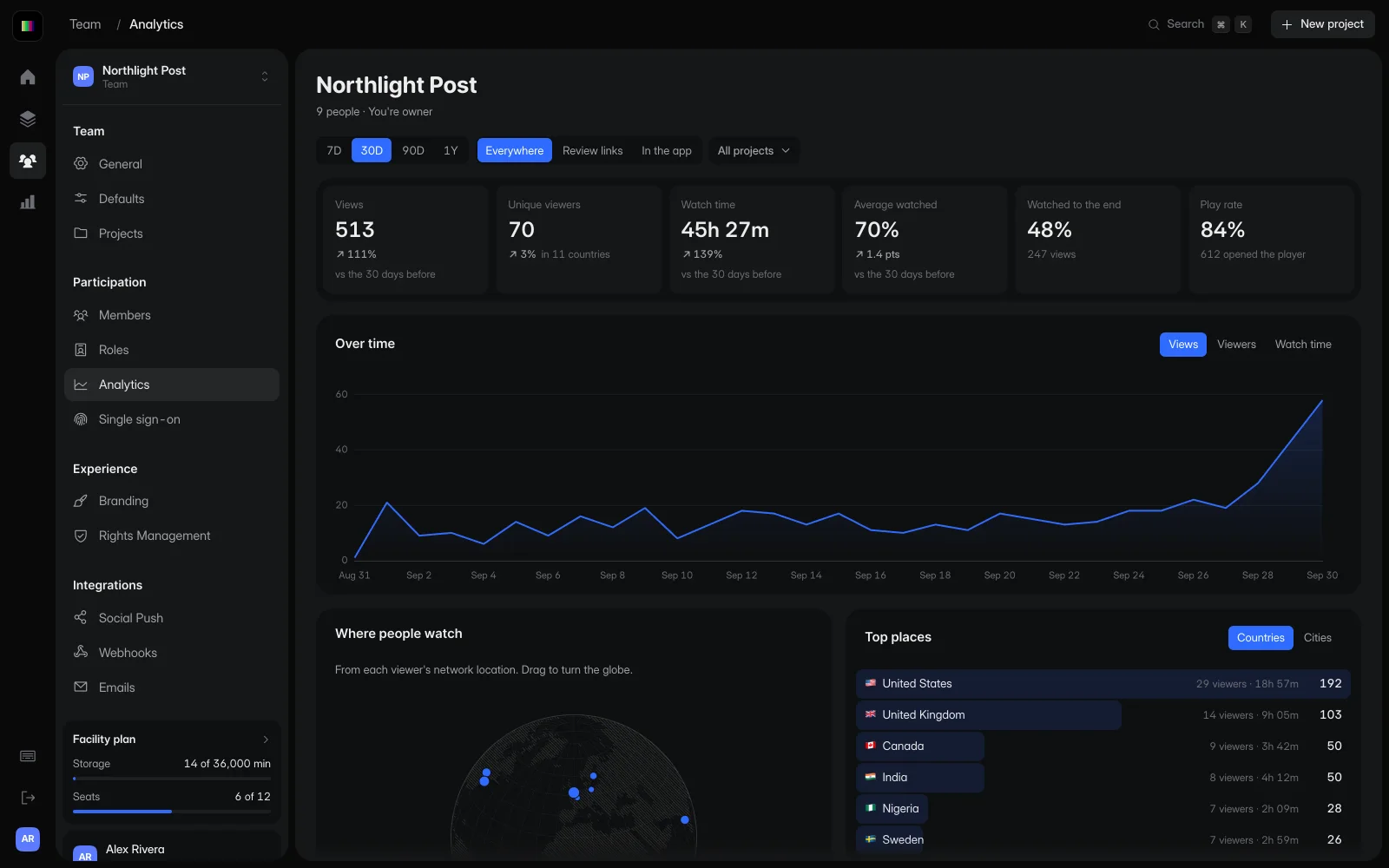
Give the producer, creative team and client the same review link. Their comments sit beside the cut, with the moment they refer to attached.
Compare two versions at the same point in the edit. Review the revised shot and the earlier feedback before you send it back.
Custom Branding on Studio adds your logo and brand colors to the review experience. Facility adds DRM for productions with stricter playback requirements.
Take the review notes into your edit as timeline markers. Each marker tells you where to look and what the reviewer asked to change.
TITLE: SINTEL_TRAILER_V3
FCM: NON-DROP FRAME

001  AX       V     C        01:00:07:12 01:00:07:13 01:00:07:12 01:00:07:13
* LOC: 01:00:07:12 CYAN    MAYA (CLIENT) HOLD ON HER A BEAT LONGER BEFORE THE TITLE CARD
002  AX       V     C        01:00:24:12 01:00:24:13 01:00:24:12 01:00:24:13
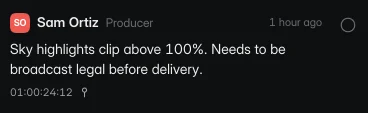
* LOC: 01:00:24:12 RED     SAM (PRODUCER) SKY HIGHLIGHTS CLIP ABOVE 100%
003  AX       V     C        01:00:31:10 01:00:31:11 01:00:31:10 01:00:31:11
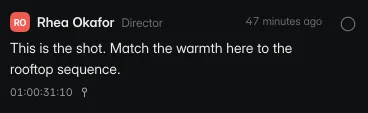
* LOC: 01:00:31:10 RED     RHEA (DIRECTOR) MATCH THE WARMTH TO THE ROOFTOP SEQUENCE
TITLE: SINTEL_TRAILER_V3
FCM: NON-DROP FRAME
001 001 V C 01:00:07:12 01:00:07:13 01:00:07:12 01:00:07:13
Hold on her a beat longer before the title card. |C:ResolveColorCyan |M:Maya (Client) |D:1
002 001 V C 01:00:24:12 01:00:24:13 01:00:24:12 01:00:24:13
Sky highlights clip above 100%. |C:ResolveColorRed |M:Sam (Producer) |D:1timecode,frame,version,reviewer,role,status,note
01:00:07:12,180,v3,Maya Lindqvist,Client,open,"Love this reveal. Can we hold on her a beat longer before the title card?"
01:00:14:17,353,v3,Dev Arora,Colorist,open,"Lifted the shadows on her face two points."
01:00:24:12,588,v3,Sam Ortiz,Producer,open,"Sky highlights clip above 100%. Needs to be broadcast legal before delivery."
01:00:31:10,754,v3,Rhea Okafor,Director,open,"This is the shot. Match the warmth here to the rooftop sequence."Yes. Reviewers are free. Paid seats are for the people who upload and manage work.
Studio adds unlimited projects, pooled storage, version comparison and Custom Branding. Choose Facility when you need DRM, SSO, audit logs or forensic watermarking.
Start free with one editor and three projects. Reviewers never pay.